
Getting Started Example
Let’s learn how to use Yomez by looking at an actual example.
This example will walk you through:
- Creating an Account
- Adding Goals
- Adding Tasks
- Fitting Your Plan & Available Time
- Doing Tasks & Tracking Time
- Reviewing the Week
Terminology
Some terms used in the example
Weekly Planner – Yomez screen where you can plan your week.
Batch – Categories for tasks for the purpose of scheduling & execution. For example, Inbox has tasks that need to be reviewed. Backlog has tasks that are going to be done in the future and Yomez shows when we can get to them. “This Week” is the batch for the current week. Tasks here get scheduled and are visible on the calendar. Weekly batches are shown in the Weekly Planner.
Time Slice – A category of time that maps to areas of your calendar. For example, Work, by default, is mapped to 9am – 5pm weekdays.
Goal – A desired end outcome in a certain time frame, not actions to achieve those results. A Goal can, and often does, take more than 1 week to accomplish. In the example below we create goals during weekly planning but those goals will take a few weeks to finish.
Task – An action to get you closer to a goal. For example, making a sales call is an action that will get you closer to the goal of making 10 sales calls.
Fit Meter – Shows task time during a week which includes how much time is available, how much is scheduled, how much is completed, and if your tasks will fit in the week.
Task Timer – Used to record time spent on a task as you work on the task.
Create Your Account
Click the Get Started button.

Then click the Create Account button.
Enter your email address, a password, and repeat the password.
Make sure to use a valid email that will reach you as that is the only way to reset a forgotten password and for passwordless logins. We promise we will not spam you or share your info with anyone.
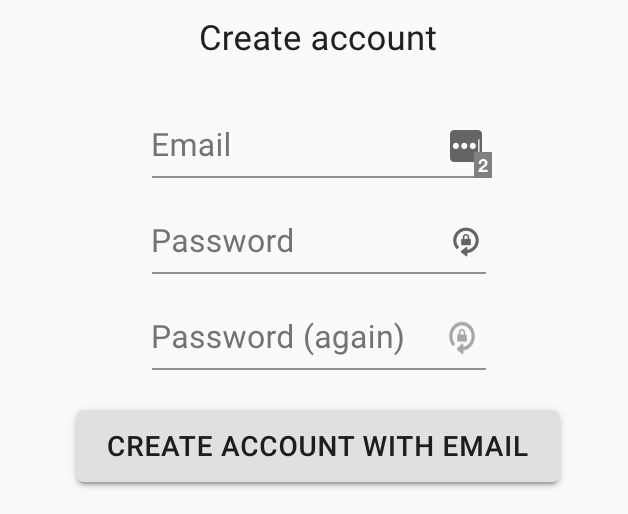
Click Create Account With Email.
Yomez will configure your new account and then will be ready to start.
Plan The Week
We start by planning our week.
First Add Goals
The first step is to decide what our Goals should be. Let’s say we want to have a new custom house to live in.
Our overall goal (also called an Objective) is to have a “New Custom House to Live In”.
To get started quickly we’ll create some goals and add these goals to our planner.
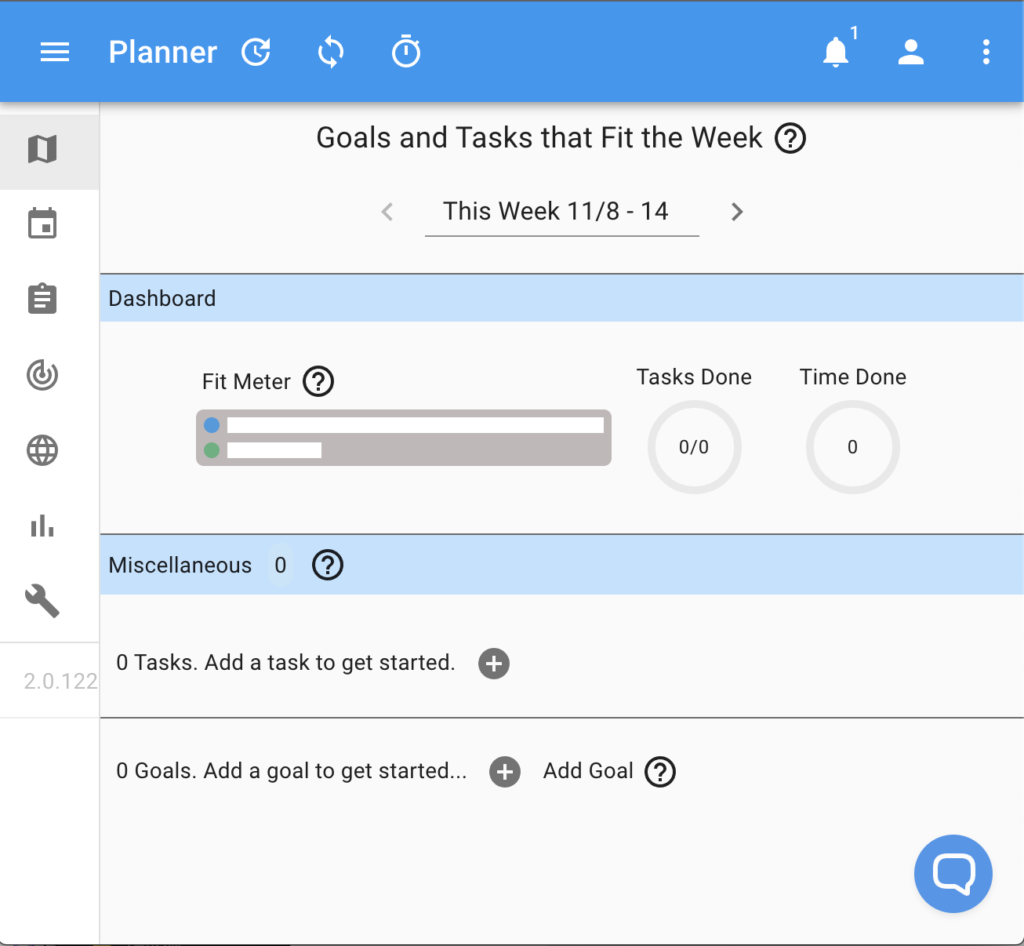
Click the “+” Icon next to “Add a goal to get started.
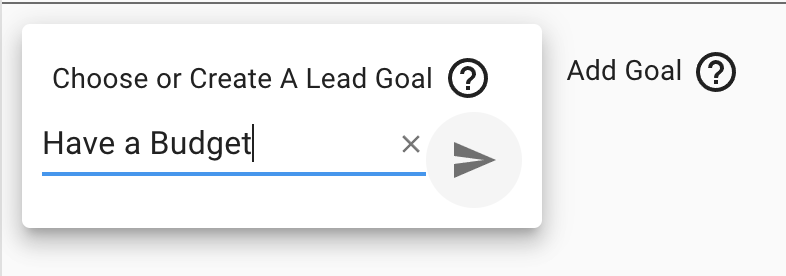
Enter “Have a budget” and then click the arrow button.
The following section will be created for this new goal.
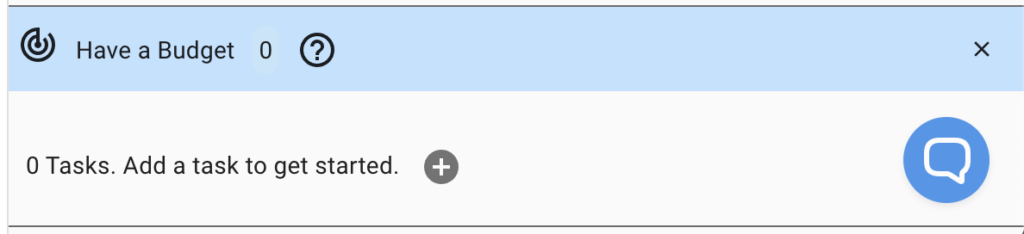
Click “+” again.
Enter “Have a Design”
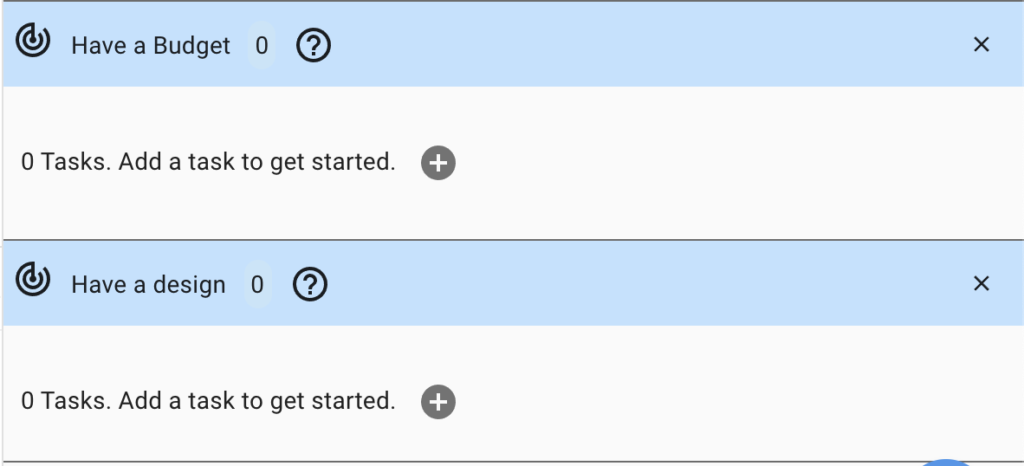
Now we see the two goal sections in our planner.
Next Add Tasks
Lets start with Have a budget Goal.
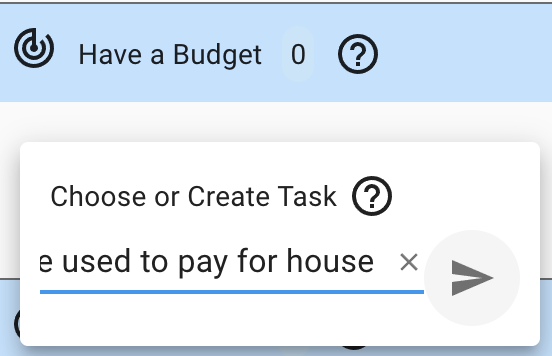
Add “Summarize Money Sources that can be used to pay for house”
Add “Review Investments”
Add “Talk to bank to see how much loan we can get”
Add “Setup meeting with partner to discuss and decide on budget”
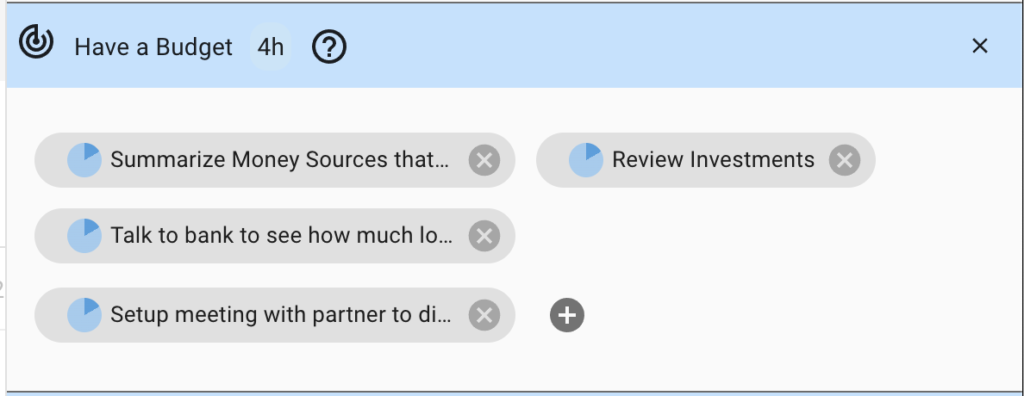
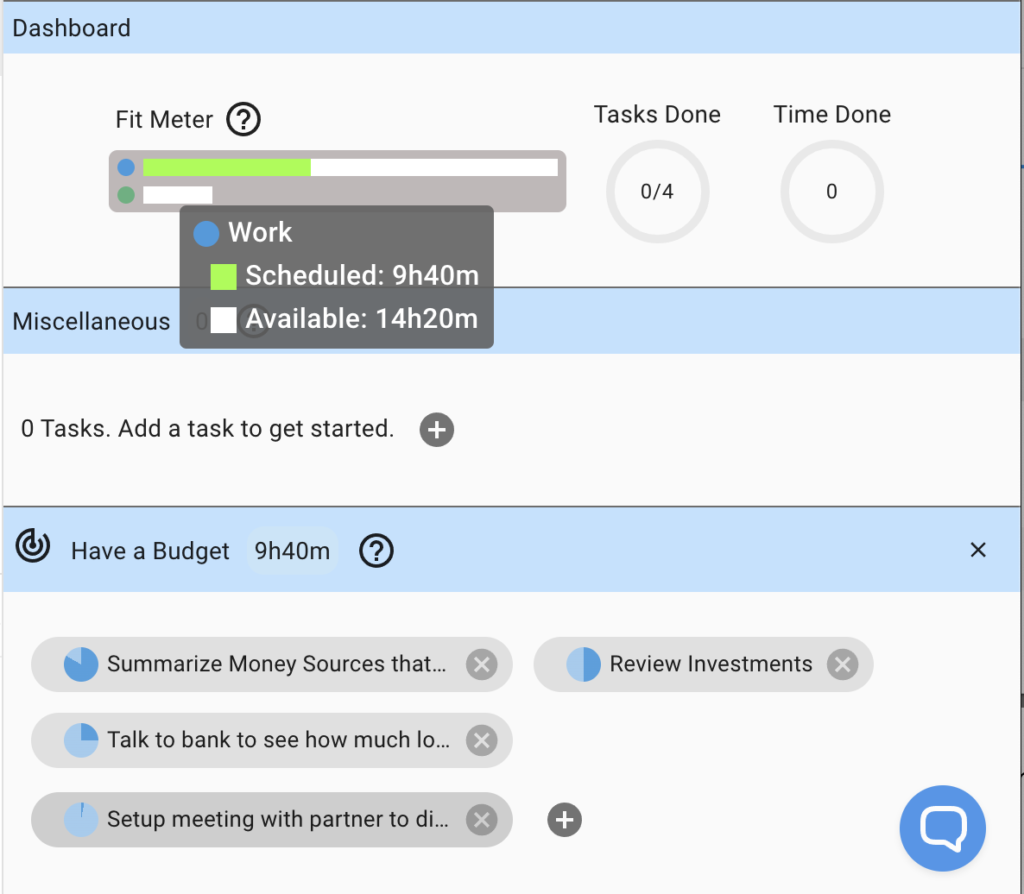
Our screen should look like this. The blue circles indicate the Work Time Slice (i.e. time on our calendar marked for Work) and how much time each task is estimated to take. Hover over the blue circle to see this info. By default Yomez allocated 1 hour. Each time you change an estimate, Yomez will use the new estimate for future tasks.
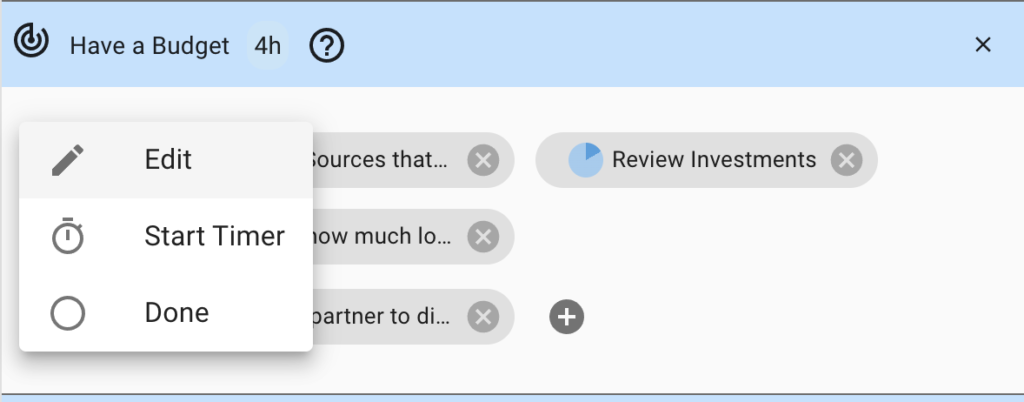
Now that we have the tasks, lets go back and adjust time estimates. Click on “Summarize Money Sources” task to show the popup menu, and select Edit.
Lets allocate 5 hours. Click on the 1h field, select 5h from the drop down. We can also type whatever time we want like 4h.
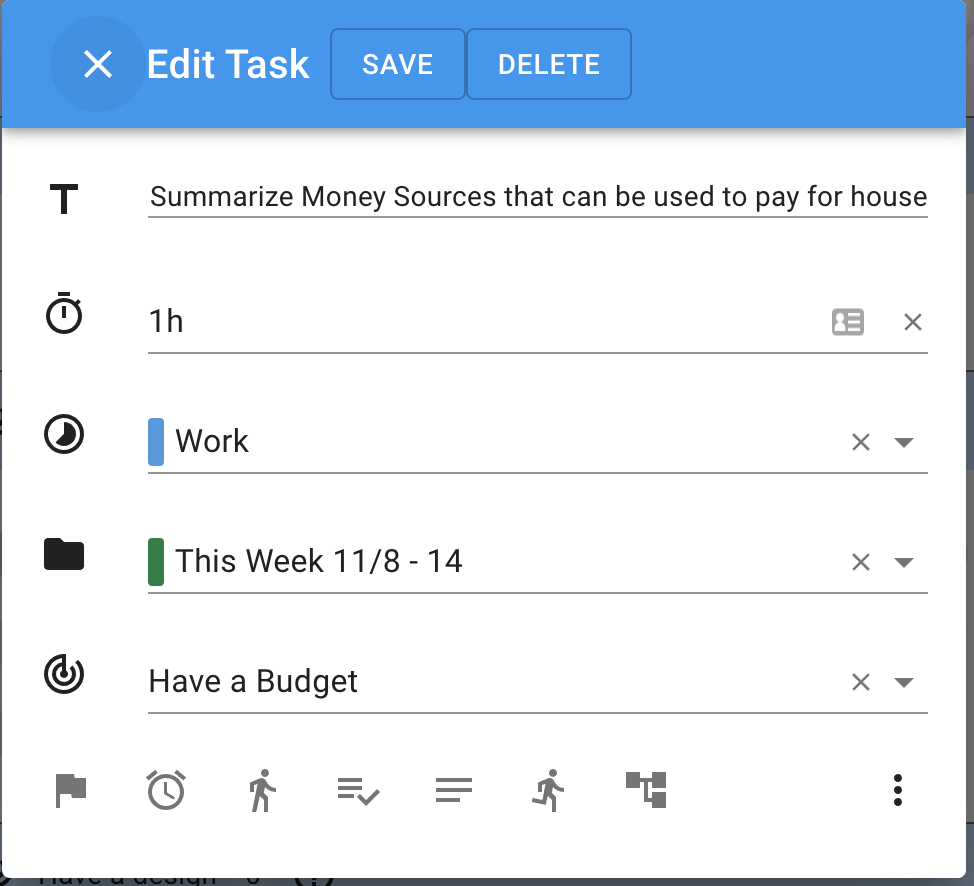
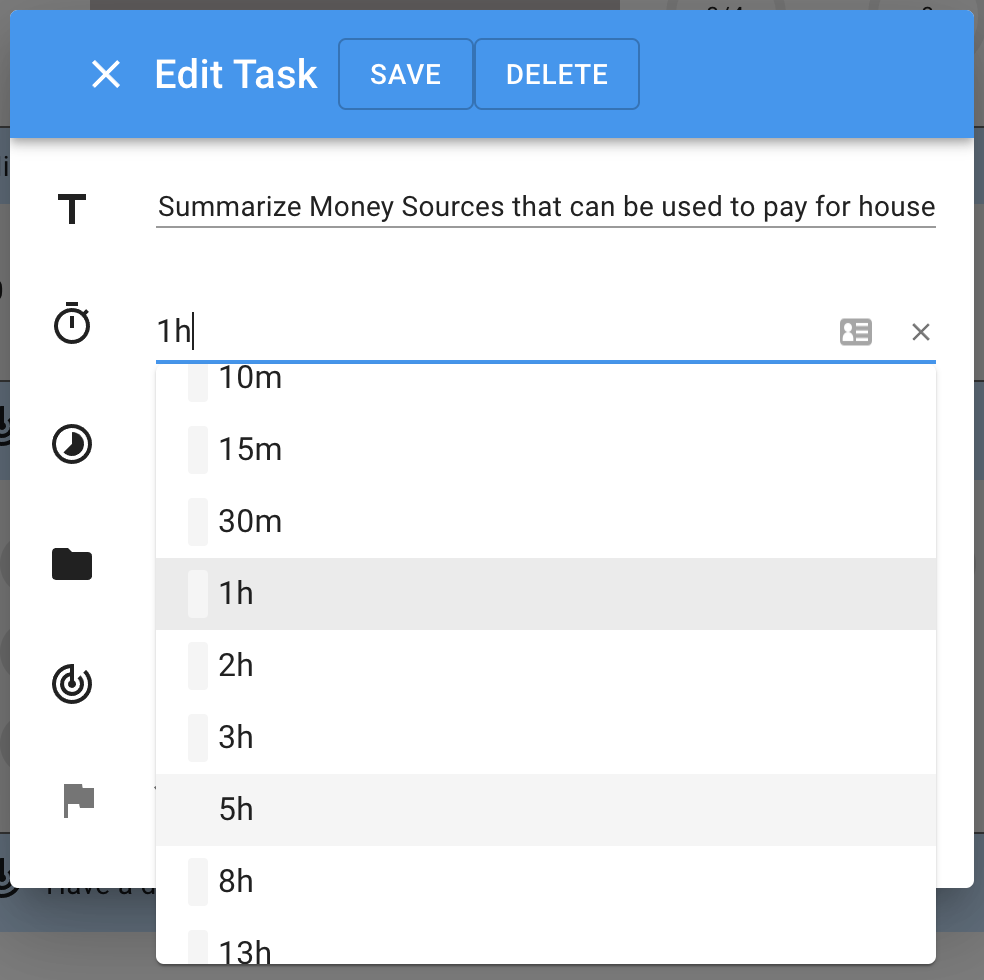
Let’s set 3 hours for “Review Investments”, 1 and a half hours (1h30m) for “Bank”, and 10 minutes (10m) to “setup a meeting”.
Review How it Fits
Our screen is below. Notice the tasks and how the circles each show a different pie slice. Also notice the Task Time Meter at the top of the screen. We’ve hovered over the first bar so we can see the details. We see that we have scheduled 9 hours and 40 minutes of tasks for Work this week, and we still have about 14 hours left that we can fill.
Note that “Work” by default is 9am – 5pm (minus meetings and other busy events on our calendar). You can see this if you go to the calendar. There is a recurring “Work” event Monday through Friday. You can change this like any calendar event (i.e. edit it, add more events, delete some, etc). Yomez uses the title of the event to determine if its a Time Slice (in this case “Work”). We’ll discuss Time Slice in more detail on a different page.
Add tasks for “Have a Design” goal
Add “Determine outline of rooms desired”
Add “Call 3 architects and get ideas”
Add “Review recent home magazines”
We’ll stop here as that is a lot for this week. We will need more tasks but it’s fine to start with what we got because we will learn some new things this week and that may change how we proceed the following week.
Add time estimates to each of the above things. 3 hours, 3 hours, 10 hours. (We made the last task intentionally long and hey, we like to read magazines!)
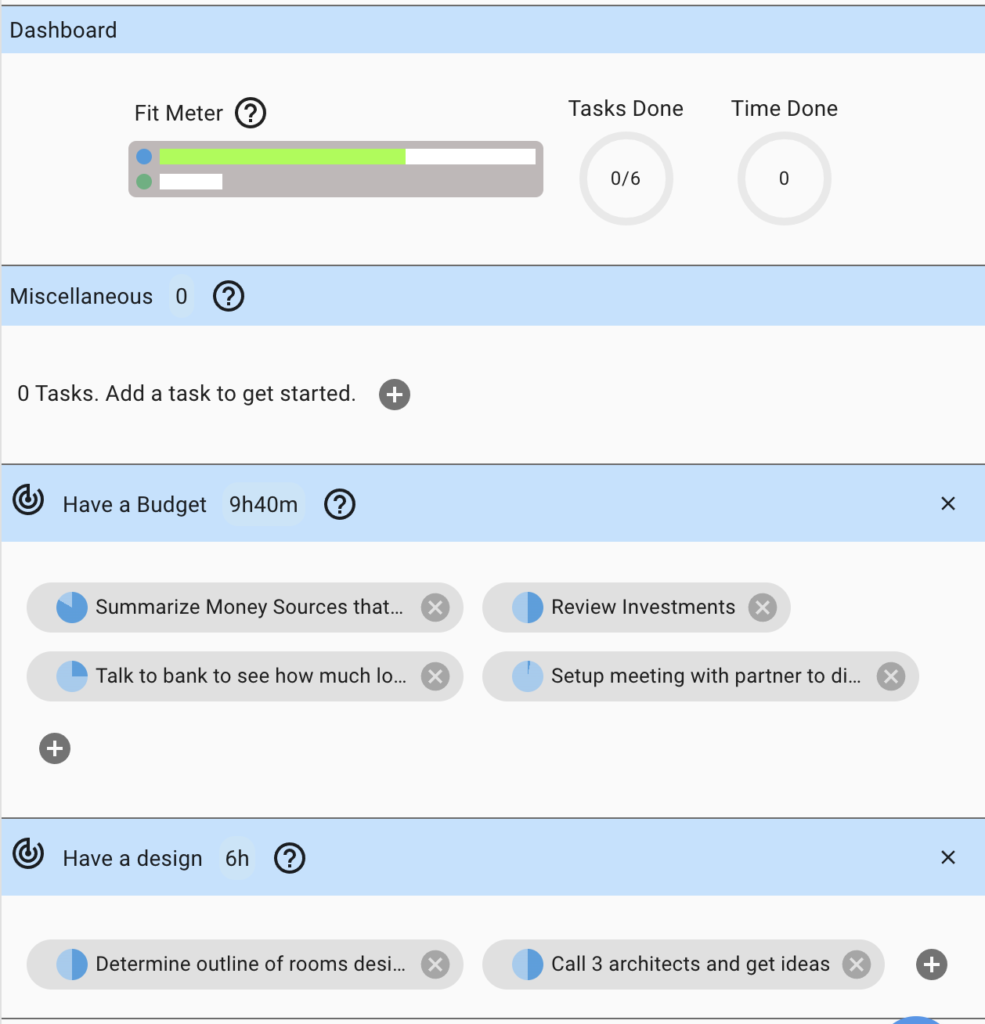
Our screen now looks like the picture below. Notice that we have 24 hours of work scheduled in our current “Work” time this week.
Adjust to Fit
We ran out of time and will overflow by 1 hour 40 minutes
So what do we do about this? There are many things we can do and we’ll mention a few below. (we’ll cover others in more details on a different page)
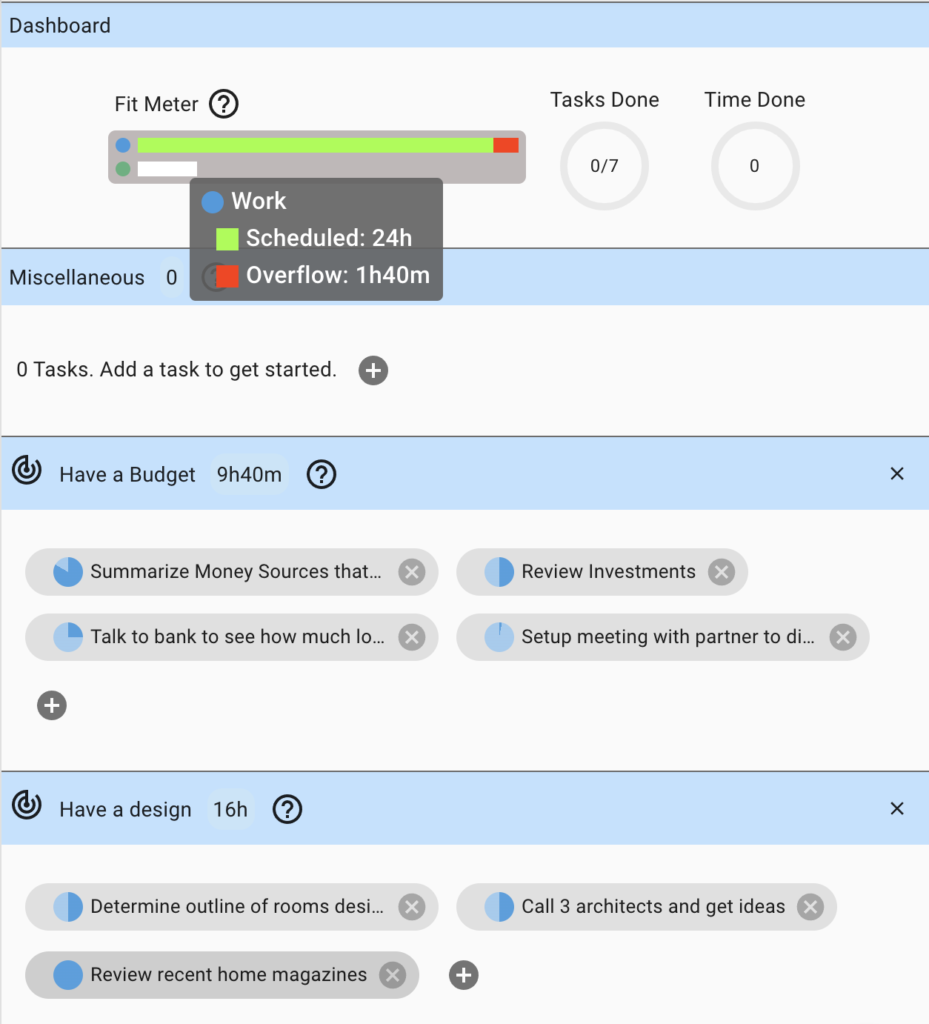
The simplest thing we can do is remove a task from this week. If we removed the magazines task, and let’s say moved it to next week’s batch, we’d be in great shape. We can also limit our magazine browsing to less than 10 hours, let’s say 8 hours instead. If we stick to this plan, it should fit fine. There are several other options which we’ll talk about in more detail in a different page. For now, let’s go ahead and move the task to next week as we have not done that yet.
To move the task to next week, click on the task, click Edit, and select “Next Week” under the Batch field.
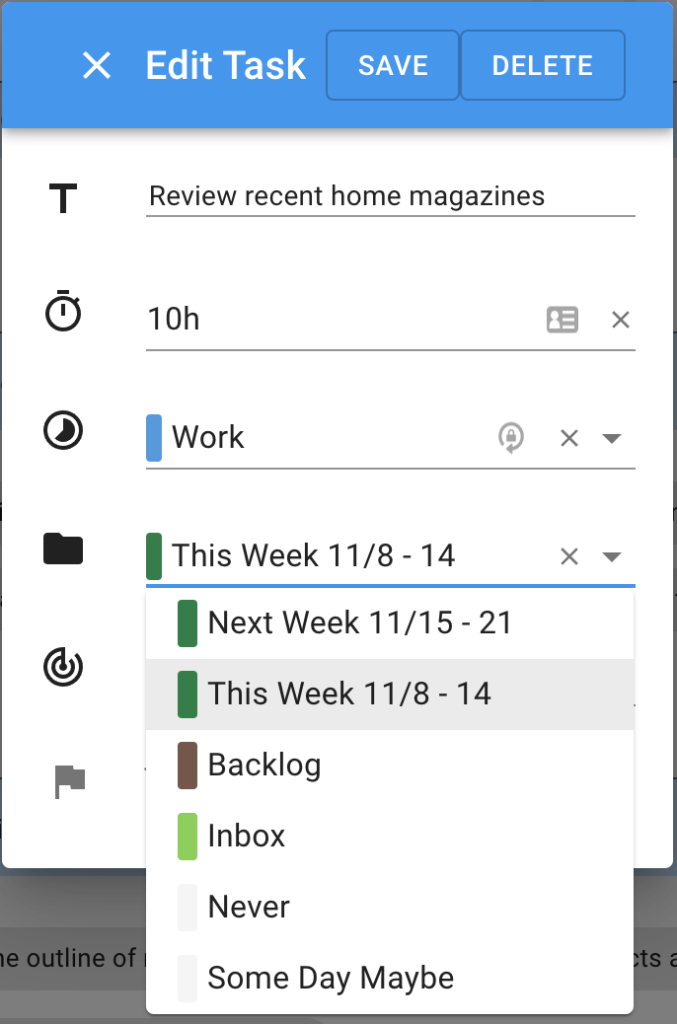
Below you’ll notice that the task disappears from our planning screen and our dashboard looks really good. We have some white space (free time) and that is ok. Free time helps us when tasks take longer than planned or when new things come up. We can always add more tasks if we have time left at the end of the week. Setting ourselves up with a plan we believe in and will likely succeed is better than over allocating.
Do the Tasks
Now that we are happy with a doable plan, we are going to put our heads down and get stuff done. We’ll start with “Summarize Money Sources that can be used to pay for house”.
Start Task Timer
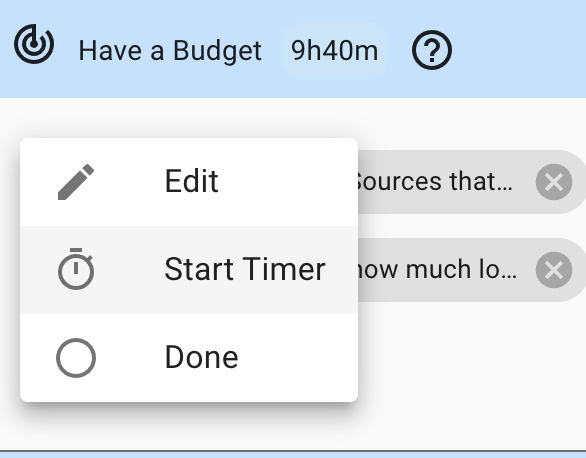
Click on that task and select “Start Timer”. We’ll choose 1 hour for our session because it’s long enough to make progress but also gives a chance to rest. If we build rest stops into our routine we’ll be able to run a longer marathon versus if we tried to sprint the whole way. It’s good to pace ourselves.
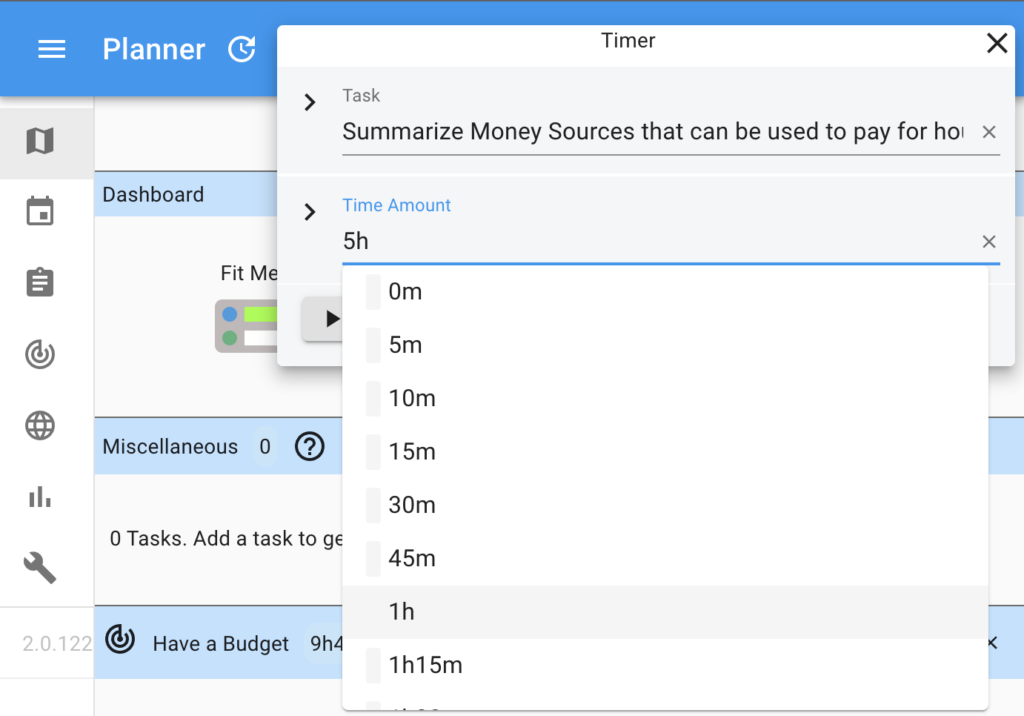
We see the timer at the top of the screen. Green indicates we are still in the hour we planned. The timer will turn red when we exceed that time and make a ding sound to remind us. Its ok to go over the time we allocated but we should avoid doing this a lot. Breaks are really important to staying at the top of our abilities.
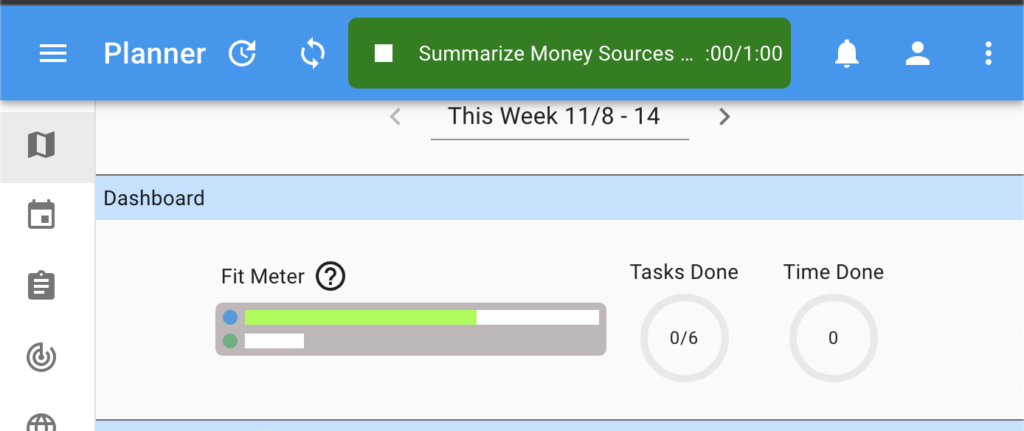
We looked at our bank accounts, pay, assets and created a spread sheet with this info.
Finish Task Timer
For this example we did not wait a whole hour and clicked on the timer after about 5 minutes. Then we selected “Complete Session” because we finished our work but the task is not done yet. We also get a celebratory animation (complements of Giphy). This can be turned off in preferences.
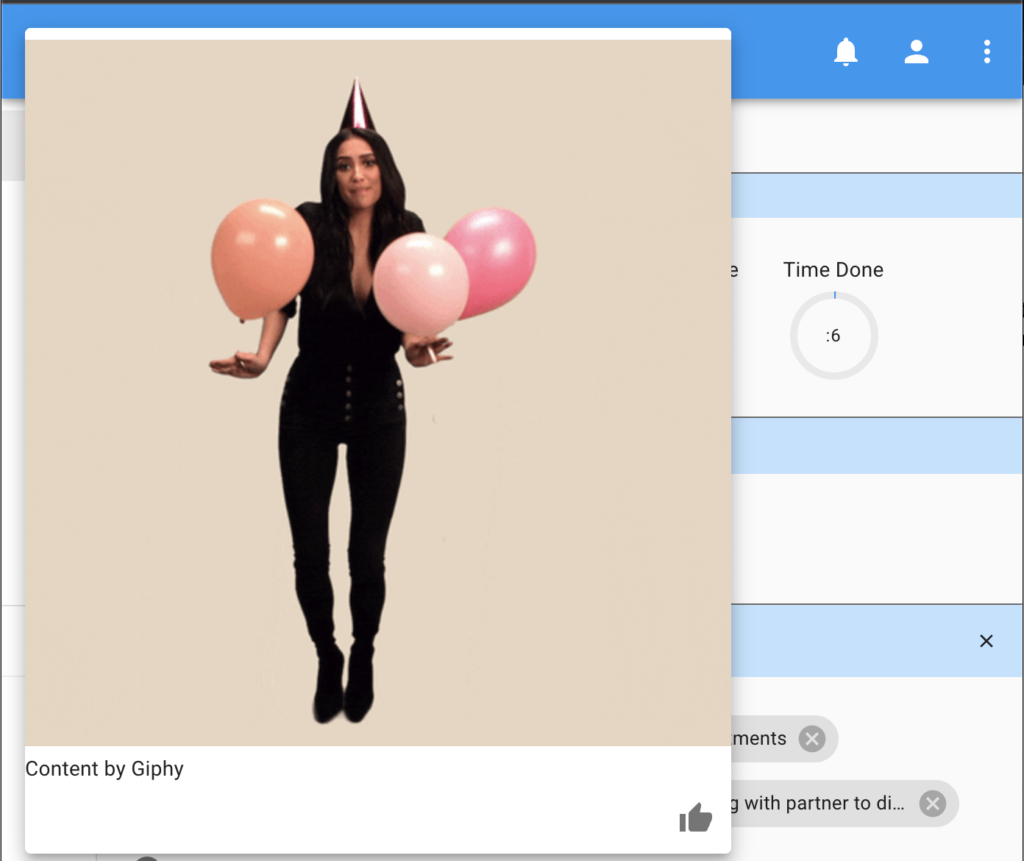
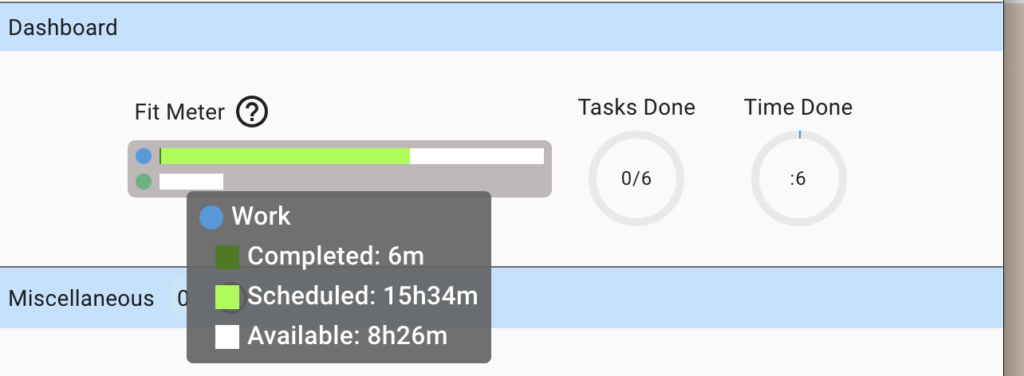
Notice how the work done meter got bigger and the Fit Meter also changed. We did a whopping 6 minutes of work! Looks like we are in good shape. Let’s take a break and then do another session.
So obviously 6 minutes is not much but keep in mind that the amount of time we spend on things is a small part of being effective and achieving our goals. If we can achieve our goals while spending less time, that is great. So time spent indicates how much effort time we are putting in but not how effective we are.
Review the Past Week
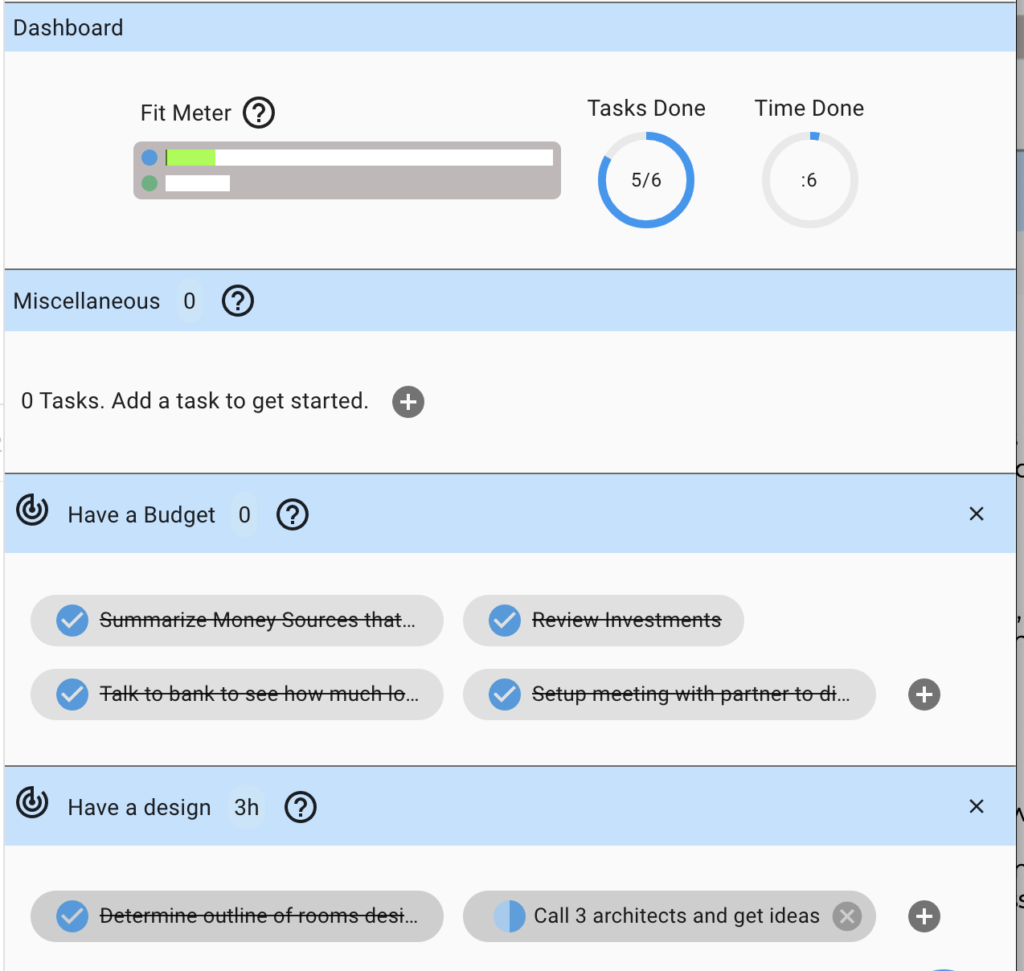
Let’s say we continued to do sessions for different tasks and got through most of our tasks. At the end of the week we can look at our board. Not bad, made good progress towards our goals.
Below shows tasks completed. Note that the time completed is not accurate because we fast forwarded for this example. If we used the timer to record our progress (or other methods if we forgot to use timer) we will see the dashboard accurately reflect what we did.
Reflect
Now we can look and see how we did, tasks completed, time worked, progress made. We learned we have $50K we can allocate (not enough to build a regular house but maybe we can get a loan). We got 2 architects with John seeming to be the best prospect (we’ll wait till next week to finish), and we know how many rooms we want (the “effectiveness room” is a must have).
Plan Next Week
One of our tasks did not make it so we move it to next week. Click on task, select Edit, and update batch to “Next Week”. Then we click on the right arrow to see our next week plan.
Click the right arrow and we see our Next Week. We can add more goals/tasks to it now or we can wait till next week to plan. Then we repeat the above process.
Notice below the Magazine task which we moved because it did not fit this week. Also notice the Call 3 architects. We have 1 to go. Lots of white space next week to make progress.
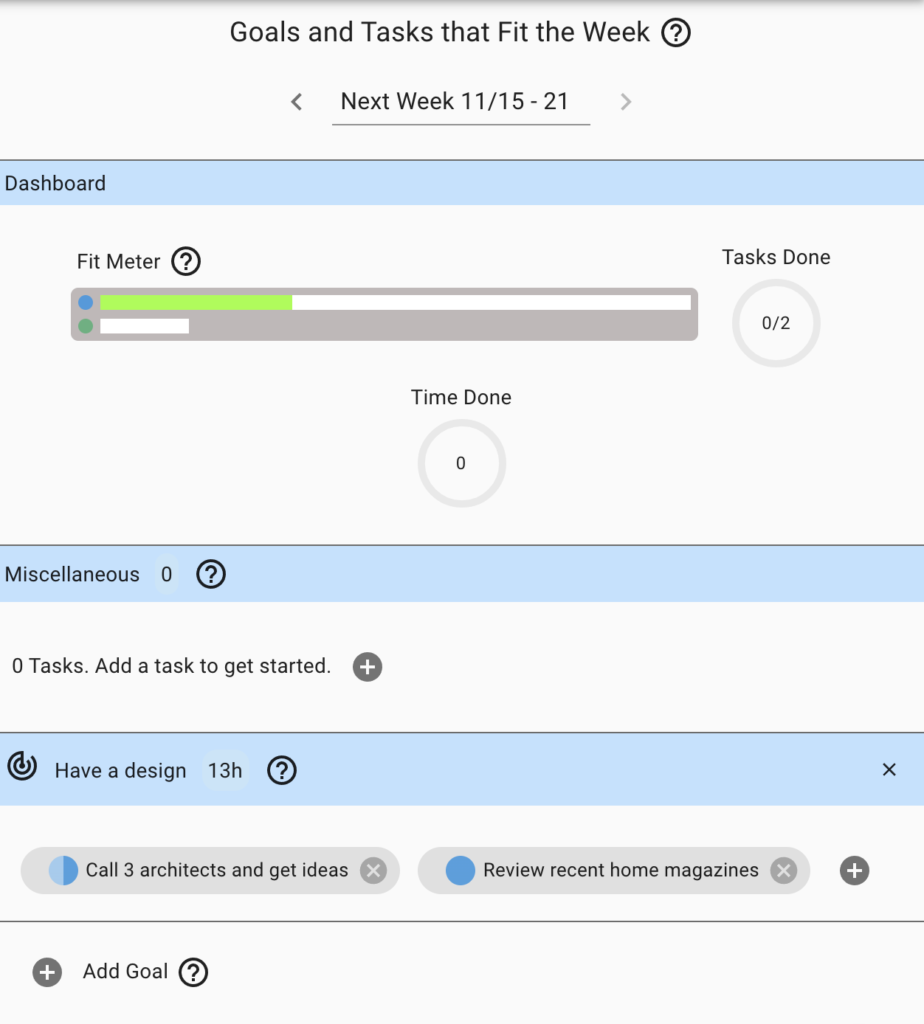
Repeat
As you can see, we can repeat these weekly batches to get us closer to our goals. Each week we make a plan that will fit and can be accomplished. We keep our eyes on the goals, and adjust as things take longer/shorter or when surprises come up.
We know if we are running behind and can change course before we miss.
If people are depending on us and we’re going to be late, we can give them a heads up way before it happens.
If our manager comes over and asks what we are up to, we can show them our weekly planner.
If the manager asks us to do 1 more thing, we can show them the plan and ask what they want us to take out.
Foundation
The above is the basic way to use Yomez to make steady progress towards your goals. We recommend you start with the above before moving on to more advanced topics.
In the following pages we’ll get into some different scenarios that come up outside the weekly cycle such as adding a Google/Outlook Calendar integration, organizing Goals with measures, reviewing/adjusting our calendars, filling our backlog with goals that span more than 1 week, and others.
© 2026 · Yomez Terms | Privacy Policy